Practical PC Tips to Keep Your Computer Fast and Safe
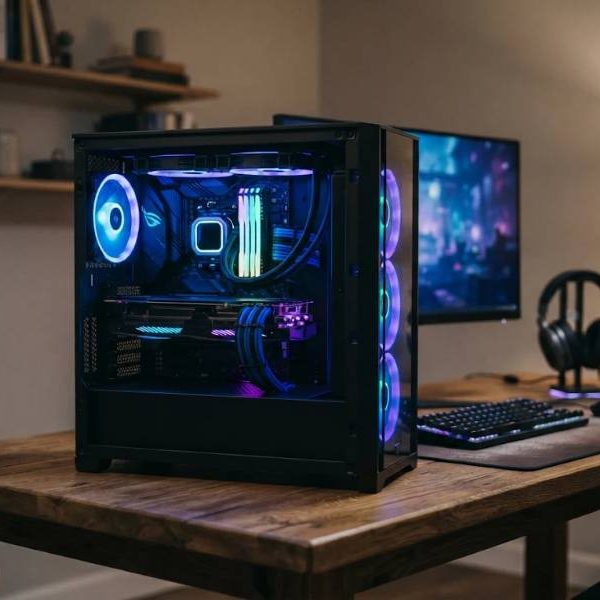
A computer that once felt quick can slowly become frustrating. The causes are usually ordinary, such as full storage, too many startup programs or missing updates. With a few regular habits you can keep your PC fast, stable and safe for years.
Keep the system updated
Operating system and driver updates fix bugs and security holes. Turn on automatic updates and restart when asked.
Most successful attacks use known flaws that already have a fix, so updates are your first defense.
Free up storage space
Disks that are nearly full slow down. Delete unused programs, clear the downloads folder and move old photos to an external drive or cloud.
Aim to keep at least fifteen percent of your drive free. The system needs room to work.
Trim startup programs
Many apps launch with the computer and run in the background. Open the task manager, review the startup list and disable what you do not need.
Your boot time will improve and memory will be available for the tasks you care about.
Check memory and upgrade if needed
Eight gigabytes is a minimum for modern use, and sixteen is comfortable for multitasking. Adding memory is one of the cheapest upgrades.
Before buying, check which type your computer uses and how many slots are free.
Switch to a solid state drive
If your PC still uses a mechanical hard disk, a solid state drive makes it feel new. Programs open faster and the whole system responds quickly.
Clone your old disk or do a clean installation. Keep your files backed up during the change.
Keep it cool and clean
Dust blocks fans and overheats components. Every six months, turn the machine off and clean vents with compressed air.
Place the computer where air can circulate. Heat shortens the life of any device.
Use trustworthy security software
Built in protection is enough for many users when kept active. Add careful browsing habits instead of piling up tools.
The Secure Our World program from CISA offers simple advice on passwords, updates, phishing and multi factor authentication.
Build strong passwords
Use a password manager to create long, unique passwords for each site. Turn on two step verification for email and banking.
A manager removes the burden of remembering and makes safe behavior easy.
Beware of phishing
Fake emails and messages try to trick you into clicking links or sharing codes. Check the sender and hover over links before clicking.
When something urges immediate action, pause and verify through another channel.
Back up your files
Follow a simple rule of three copies, on two types of storage, with one stored away from home. Automatic cloud backups make this painless.
Test restoring a file once a year. A backup you cannot restore is not a backup.
Uninstall what you do not use
Old programs consume space and may run background tasks. Remove trial software and toolbars you never asked for.
Download software only from official sites to avoid hidden extras.
Manage browser extensions
Extensions can slow browsing and collect data. Keep only a few that you trust and use.
Check permissions and remove anything unfamiliar. A lean browser feels faster and safer.
Use automation to save time
Scripts and assistants can organize files, clean folders and schedule backups. Small automations free attention for real work.
Our overview of AI agents for business automation shows how modern tools handle routine tasks with minimal setup.
Choose hardware with care
When buying a new PC, balance processor, memory, storage and display according to your needs. Gamers, editors and office users need different mixes.
Read reviews from several sources and check the warranty and repair options.
Mind the language of the hardware market
Many PC components and peripherals are designed in Taiwan and mainland China, and manuals or support pages may need accurate localization.
Manufacturers who sell worldwide use Chinese translation services to prepare packaging, guides and support articles for different markets.
Monitor performance
The task manager and built in resource monitor show which programs use the most processor and memory. Spot patterns before they become annoying.
If one app consumes too much, update it, reconfigure it or find an alternative.
Care for your battery
On laptops, avoid keeping the battery at full charge and heat for long periods. Use battery saver features when traveling.
Replace a worn battery when needed. It is cheaper than replacing the whole laptop.
Know when to reinstall
If the system is slow after cleaning, a fresh installation can restore performance. Back up data first and keep installers ready.
Document your key programs and settings, so you can restore your setup within an hour.
Make maintenance a monthly habit
Set a reminder for updates, backups and cleaning. Fifteen minutes each month prevent most problems.
A little care keeps your computer ready whenever you need it, and avoids stressful emergencies.
Keep your desktop tidy
A clean desktop and well named folders save time every day. Sort files weekly and delete duplicates so you can find what you need in seconds.
Order on the screen often brings a calmer mind and fewer lost documents.